> ## Documentation Index
> Fetch the complete documentation index at: https://docs.murmur.dev/llms.txt
> Use this file to discover all available pages before exploring further.
# Admin Quickstart
> Set up your team's Murmur workspace so developers can start spawning agents — link GitHub, configure a placement, bake an image, grant permissions.
Install the Macroscope app on your GitHub organization first. Go to [app.macroscope.com](https://app.macroscope.com) to link your org.
Setting up Murmur happens in two phases:
1. **Admin setup** (one-time, per organization). Follow this page.
2. **Developer setup** (per developer). See [Developer Quickstart](/quickstart).
## Initial admin setup
This is the fastest path to a working Workspace. It uses the default Murmur Image so you can spawn agents right away. To swap in a custom toolchain (Go, Python, Docker, etc.), see [Customize your Workspace](/customize-your-workspace).
1. Log in via GitHub at [cloud.murmur.dev](https://cloud.murmur.dev).
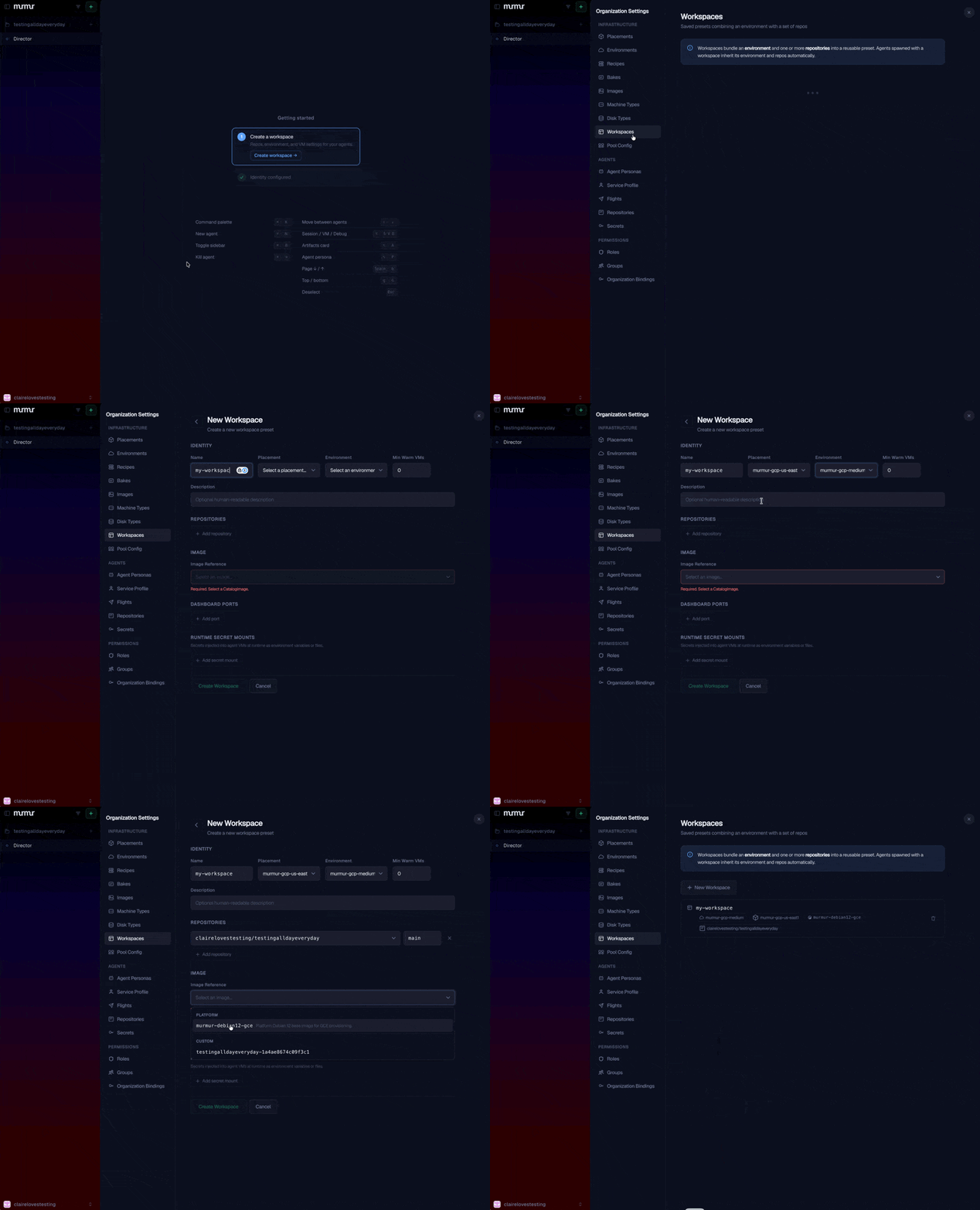
2. Open **Organization Settings → Workspaces** and click **+ New Workspace**.
3. Fill in the form:
* **Name**: what you want to call this Workspace (e.g. your team or project name, like `acme-backend`). Must be lowercase letters, digits, and hyphens. This name is what your developers will reference when spawning agents.
* **Placement**: select **`murmur-gcp-us-east1`**.
* **Environment**: select **`murmur-gcp-medium`**.
* **Repositories**: click **+ Add repository** and pick the repos your agents will work on.
* **Image Reference**: select **`murmur-debian12-gce`**.
4. Click **+ New Workspace**.
5. (Optional) Set up a [**Service Profile**](/security/service-profile) so you and your team can run agents under a shared bot identity.
 ## CLI setup
CLI setup requires a GitHub account, the `gh` CLI (authenticated via `gh auth login`), and a Claude API key or Anthropic subscription.
### Step 1: Install the CLI
```bash theme={null}
brew tap prassoai/tap
brew install prassoai/tap/murmur
```
### Step 2: Navigate to your repository
`cd` into the repository where you want your Murmur agents to work.
### Step 3: Set up
```bash theme={null}
murmur setup
```
The wizard:
* Gathers your credentials (GitHub, Claude, optionally OpenAI)
* Generates an SSH signing key, and optionally uploads the public key to GitHub for verified commits
* Bookmarks your tenant and Workspace in `.murmur/murmur.yaml` (committed)
* Writes your encrypted personal profile to `.murmur/murmur.local.yaml` (gitignored)
* Uploads your encrypted profile to the platform so the dashboard can spawn agents on your behalf
* Registers the Murmur MCP with your coding agent (e.g. Claude Code)
When prompted to add the Murmur MCP, say **Yes**.
### Step 4: Commit your tenant config
`murmur setup` writes two files into `.murmur/`:
* `murmur.yaml`: your shared tenant and Workspace pointers. Belongs in version control.
* `murmur.local.yaml`: your personal encrypted credentials. Stays on your machine. The wizard adds it to your repository's root `.gitignore` automatically.
Commit the shared files so every teammate who clones the repo inherits the same tenant and Workspace:
```bash theme={null}
git add .murmur/murmur.yaml ./.gitignore
git commit -m "Add Murmur config"
git push
```
After this lands on your default branch, anyone who runs `murmur setup` in a fresh clone skips the tenant and Workspace prompts and goes straight to credentials.
## Next steps
Launch an agent into your new Workspace.
Run `murmur init` to bake a custom Image for your toolchain.
Onboard the rest of your team.
Agents, Workspaces, Pools, Flights, Events, and the rest of the model.
## CLI setup
CLI setup requires a GitHub account, the `gh` CLI (authenticated via `gh auth login`), and a Claude API key or Anthropic subscription.
### Step 1: Install the CLI
```bash theme={null}
brew tap prassoai/tap
brew install prassoai/tap/murmur
```
### Step 2: Navigate to your repository
`cd` into the repository where you want your Murmur agents to work.
### Step 3: Set up
```bash theme={null}
murmur setup
```
The wizard:
* Gathers your credentials (GitHub, Claude, optionally OpenAI)
* Generates an SSH signing key, and optionally uploads the public key to GitHub for verified commits
* Bookmarks your tenant and Workspace in `.murmur/murmur.yaml` (committed)
* Writes your encrypted personal profile to `.murmur/murmur.local.yaml` (gitignored)
* Uploads your encrypted profile to the platform so the dashboard can spawn agents on your behalf
* Registers the Murmur MCP with your coding agent (e.g. Claude Code)
When prompted to add the Murmur MCP, say **Yes**.
### Step 4: Commit your tenant config
`murmur setup` writes two files into `.murmur/`:
* `murmur.yaml`: your shared tenant and Workspace pointers. Belongs in version control.
* `murmur.local.yaml`: your personal encrypted credentials. Stays on your machine. The wizard adds it to your repository's root `.gitignore` automatically.
Commit the shared files so every teammate who clones the repo inherits the same tenant and Workspace:
```bash theme={null}
git add .murmur/murmur.yaml ./.gitignore
git commit -m "Add Murmur config"
git push
```
After this lands on your default branch, anyone who runs `murmur setup` in a fresh clone skips the tenant and Workspace prompts and goes straight to credentials.
## Next steps
Launch an agent into your new Workspace.
Run `murmur init` to bake a custom Image for your toolchain.
Onboard the rest of your team.
Agents, Workspaces, Pools, Flights, Events, and the rest of the model.